
Renderosity Forums / Poser 11
Welcome to the Poser 11 Forum
Forum Moderators: nerd Forum Coordinators: Anim8dtoon, Digitell
Poser 11 F.A.Q (Last Updated: 2026 Mar 04 9:12 am)

Welcome to the Poser Forums! Need help with these versions, advice on upgrading? Etc...you've arrived at the right place!
Looking for Poser Tutorials? Find those HERE

Subject: Lighting issues in Poser 11.


You can point any light except a point light at a figure, body part, or prop. Create light. Go into the object menu and click on point at... and choose what you want to work on. The light will continue to point at the figure around if you move either the light or the figure.
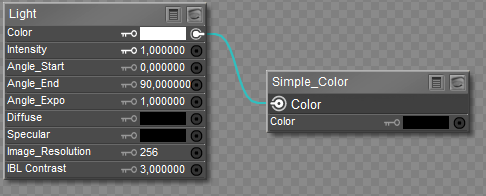
If you want a light that shows up in the workspace but not the render, set up a shader like this with a simple color node set to black plugged into Color, Diffuse, and Specular of the light node
Keep in mind, if this is for the workspace rather than render, OpenGL (what poser has for a preview mode) can only handle 7 or 8 lights. If you have more in your scene, you can choose whether or not to include or exclude individule lights on the light's properties tab.
Available on Amazon for the Kindle E-Reader Monster of the North and The Shimmering Mage
Today I break my own personal record for the number of days for being alive.
Check out my store here or my free stuff here
I use Poser 13 and win 10

You may also add posing-only light while building your scene: set its diffuse and specular to black. This way it won't render at all. My default scene uses 3 of them, whatever the version of Poser.
Can't show you a pic as at this time, this website has once again some issues, such as adding a picture (whatever the way)
𝒫𝒽𝓎𝓁
(っ◔◡◔)っ
👿 Win11 on i9-13900K@5GHz, 64GB, RoG Strix B760F Gaming, Asus Tuf Gaming RTX 4070 OC Edition, 1+2 TB SSD's, 6+4TB HD
👿 Mac Mini M2, Sequoia 15.5, 16GB, 500GB SSD
👿 Nas 10TB
👿 Poser 13 and 14 ❤️
Can you elaborate on that Phil?
I did try to get the lighting set up as hborre suggested, it's better but with dark skin as Jon for L'H has I still cannot see the area as well as I really need to to determine what needs to be done. If anything. My tester may have similar issues with her lighting so what may look like an issue may be a lighting thing.
---Wolff On The Prowl---
If you are looking for texture imperfections, then you would be better off using brighter lighting, but too bright will wash out details. A solution would be to temporarily raise the brightness of the texture in the Material Room and check for imperfections or problems, then reset everything for final release. Very dark skin is problematic because details are lost under normal rendering conditions. The introduction of specular maps for highlights can alleviate the detail loss; however, how realistic do you want the character to appear in the final render? Chances are a user might strip out all your Material Room settings and replace it with their own custom creation.
Excellent suggestion. I use an HSV to work a little magic with Jon's skin color options so I just upped the Value to 5.000 but might up it to like 6 or 7 to see better. I hope I can remember this trick. I might get this solved after all! THANK YOU
---Wolff On The Prowl---
Works really well and as much as I'd love to make your eyes bleed with my render example (LOL) the upload here is broken. I wrote Tim about this and I'm hoping he will look into getting that fixed sooner than later. My only concern is that light hits things differently when you darken skin so what looks good lighter MAY not look quite right in it's default state!
---Wolff On The Prowl---
RAMWorks posted at 10:54 AM Mon, 2 March 2026 - #4504328
This kind of setup adds light only during the setup of your scene, it remains invisible at render time.Can you elaborate on that Phil?
I did try to get the lighting set up as hborre suggested, it's better but with dark skin as Jon for L'H has I still cannot see the area as well as I really need to to determine what needs to be done. If anything. My tester may have similar issues with her lighting so what may look like an issue may be a lighting thing.
𝒫𝒽𝓎𝓁
(っ◔◡◔)っ
👿 Win11 on i9-13900K@5GHz, 64GB, RoG Strix B760F Gaming, Asus Tuf Gaming RTX 4070 OC Edition, 1+2 TB SSD's, 6+4TB HD
👿 Mac Mini M2, Sequoia 15.5, 16GB, 500GB SSD
👿 Nas 10TB
👿 Poser 13 and 14 ❤️

Privacy Notice
This site uses cookies to deliver the best experience. Our own cookies make user accounts and other features possible. Third-party cookies are used to display relevant ads and to analyze how Renderosity is used. By using our site, you acknowledge that you have read and understood our Terms of Service, including our Cookie Policy and our Privacy Policy.
Hiya,
I really can't see very well under the L'H figure regardless of the lights I try to set up. So not sure how to proceed in checking the testing feedback I got for my update to Jon for L'H. I checked out the Dark skin with the Dark genital option and it seems OK from what I CAN see but can't be 100% sure and I want this fixed and done.
It's the one thing that Poser does NOT have over DAZ Studio: the lighting is a bit easier to manipulate in DS in my humble opinion and there is a way in DS to point the light directly onto the area you want to point it too. I don't know how to do this In Poser! Setting up proper lighting in ANY program can be quite fidgety but for dark skinned characters with attachments like a genital conformer and being told that things are matchy matchy if I can't see what she was talking about I can't fix it.
I can't seem to get a spot or infinite or even an IBL light to light up the underside of the figure at all. Very frustrating!
Any suggestions folks so I can get this done finally?!?!
Thanks so much.
---Wolff On The Prowl---
My Store is HERE
My Freebies are HERE